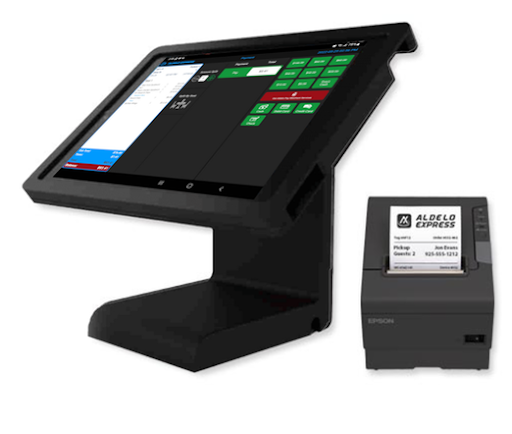
Aldelo Express runs on tablets. Not laptops, not ancient registers bolted to counters—tablets. You pick the right hardware, or you pick wrong and waste two grand on gear that won’t talk to the app. Here’s how to avoid that mistake. The difference between a smooth shift and a broken POS at 7pm lunch rush comes down to knowing what hardware actually works. Let me walk you through it, because I’ve seen too many restaurants buy incompatible printers and pretend everything is fine while tickets pile up in the kitchen.
Core System Requirements for Aldelo Express
Aldelo Express doesn’t demand much, but what it demands, it demands. The system is built for tablets and Android terminals, not Windows boxes. That’s the first rule. If you’re still thinking “PC POS,” stop.
General OS and Network Specifications
iPad runs the show for most restaurants using Aldelo Express. iOS stability, touchscreen responsiveness, and integration with restaurant workflows—it works. Android tablets exist too, but the certified options are narrower. The certified Android terminal is the POSBANK ACT 1560, which brings Android 9, a Dual-Core Cortex A72 processor clocked at 1.8 GHz, 4GB of DDR4 RAM, and 64GB of EMMC storage. That 15.6″ display at 1920×1080 gives you real estate to work with during service.
Network-wise, you need Gigabit LAN on the POSBANK. Wi-Fi is optional on tablets, but Ethernet backbone matters when you’ve got printers, scales, and cash drawers all talking to one terminal. Wired is better. Wireless adds latency. In a busy kitchen at 6:30pm close, every millisecond counts when tickets are flying to the printer.
One thing people miss: Windows printer drivers don’t cross over to iOS. If you’re migrating from an old Windows POS, your USB receipt printer probably won’t work with iPad. Ethernet or Bluetooth—those are your options on Aldelo.
Minimum vs. Recommended Specs for Optimal Performance
Minimum means it runs. Recommended means it doesn’t choke during dinner service.
For iPad, you’re not hitting a hard RAM ceiling published anywhere, but the ecosystem assumption is modern iPad hardware from the last 3-4 years. Older models (iPad 3rd Gen era) exist but aren’t certified. For Android on the POSBANK, that 4GB DDR4 and 64GB EMMC are your baseline—not a suggestion.
If you’re running multiple terminals in one location, each one needs its own wired Gigabit connection or a solid Wi-Fi 5 mesh. Throughput matters when back-of-house is printing 200 tickets per shift.
Choosing Your POS Terminal: Compatible Tablets and Devices
This is where most restaurants make or break their hardware decision. Pick the wrong tablet family, and you’re stuck with no certified peripherals and zero support escalation when something breaks.
iOS Devices: The Power of iPad in a Restaurant Setting
iPad. That’s the certified iOS platform for Aldelo Express. Not iPhone, not iPod—iPad. The touchscreen size matters for servers taking orders, managers running reports, and bartenders checking inventory during service.
Modern iPad models support Aldelo Express without fuss. Required iOS versions track with Apple’s current support window, so if your iPad can run the latest iOS, it can run Aldelo. The real question is: which iPad generation? Standard iPad works. iPad Pro works. iPad Mini works if your staff can read a smaller screen during rush. Most restaurants default to standard iPad or iPad Pro for the larger display real estate.
Why many choose dedicated Restaurant iPad POS Systems for their ecosystem and ease of use is simple—you’re buying a tablet already optimized for hospitality. Certified peripherals ship with Lightning-to-USB adapters. Printers auto-detect. The software is tuned for iPad’s constraints and strengths. You’re not trying to retrofit a consumer device into a business workflow.
One edge case: if your location has heavy duty kitchen environments (steam, grease splatter), a rugged case and tempered glass screen protector are non-negotiable. Consumer iPad glass fails fast in a real kitchen. Commercial iPad mounts with protective bezels cost more but survive a 36-month lease without cracking.
Android and Windows Compatibility
Android tablets are compatible, but only if they’re certified. The POSBANK ACT 1560 is your certified option for Android. It’s a 15.6″ all-in-one terminal—more like a traditional POS console than a tablet. Android 9 OS, the 1.8 GHz processor, 4GB RAM, and 64GB storage make it reliable for full-shift operation.
Windows devices are not certified for Aldelo Express. I know some restaurants tried to jury-rig it. It doesn’t work. Aldelo Express is mobile-first—iOS and Android. If you’ve got existing Windows hardware from a previous POS system, sell it or repurpose it for back-office accounting. Don’t force it into Aldelo.
Windows printer drivers—Epson, Star, you name it—often fail on iPad because iOS doesn’t load Windows drivers. That’s not a bug in Aldelo; it’s how iOS works. Your printer must be Ethernet, Wi-Fi, or Bluetooth native.
Essential Printing: Compatible Receipt and Kitchen Printers
Printers are where compatibility kills you fastest. A printer that works on Windows doesn’t work on iPad. A printer without Ethernet or Bluetooth stays silent on a mobile POS.
Receipt Printers Compatibility List
Certified receipt printers for Aldelo Express include Star Micronics TSP143L and Epson models: TM-M30, TM-T88V, TM-T20ii, and TM-M10. All use 58mm x 39mm thermal paper. All support Ethernet connection, which is the standard for restaurant POS.
Star Micronics TSP143L also supports optional drawer kick (DK) for direct cash drawer actuation. That means when a sale closes, the printer triggers the drawer without extra wiring. Cleaner setup. Fewer points of failure.
Ethernet wins in restaurants. It’s wired, stable, and doesn’t drop mid-shift like Bluetooth sometimes does. Wi-Fi printers exist, but introduce latency—tickets print 1-2 seconds slower. During a rush, that adds up. Bluetooth works for mobile terminals, but again, Ethernet is preferred if your printer sits stationary at the host stand or in the kitchen.
One trap: don’t buy a receipt printer without checking the certified list first. A $200 generic thermal printer from an office supply chain probably won’t work. Star and Epson certified models are non-negotiable.
Kitchen and Bar Printers (Impact/Thermal)
Kitchen printers take abuse. Heat, steam, grease—the environment is harsh. Impact or thermal both work, but thermal is quieter and faster.
Certified kitchen printers: Epson TM-U220 Ethernet and Epson TM-L90 Ethernet label printer. Both 58mm paper. Both Ethernet-connected to your network. The TM-U220 is an impact printer (older tech, but bulletproof in dirty kitchens). The TM-L90 is thermal for labels if you’re printing stock tickets or prep labels alongside food tickets.
Placement matters. Kitchen printer should hang on the pass or on a wall near the grill. Bar printer (if separate) goes behind the bar. Each device needs its own Ethernet drop or Wi-Fi connection. During peak service, two simultaneous print jobs (bar order + kitchen ticket) can’t compete on one printer.
Completing Your Setup: Supported Peripherals
Beyond tablets and printers, you need the ecosystem. Cash drawers, scanners, scales, payment terminals—all of it has to integrate.
- Cash Drawers: Printer-driven models work best. When the Star TSP143L has a drawer kick port, you connect a drawer there. Power comes from the printer. No extra cabling. Standalone cash drawers exist but require additional power and control wiring—more points of failure.
- Barcode Scanners: Certified options include Teemi TMCT-10, Code Reader 2600, and CipherLab 1663 (Bluetooth). Bluetooth is the bridge for mobile POS—server scans an item, it pops into the iPad order. Ethernet scanners exist, but are less practical on tablets.
- Payment Terminals: EMV readers and NFC readers connect via Bluetooth or USB (via Lightning adapter on iPad). Contactless payments are standard in 2026. Your terminal must support chip and contactless, or you’re leaving money on the table.
- Customer Displays and Digital Signage: HDMI or Ethernet-connected displays work for kitchen display systems (KDS) or customer-facing menus. Make sure your iPad or Android terminal supports the connection type (Ethernet video, HDMI via adapter, or separate network-connected display).
- Scales: Star Micronics MG-S8200 Bluetooth scale integrates for produce-by-weight orders. Pairs to the POS via Bluetooth. Useful for coffee shops, delis, or casual restaurants tracking portions.
Sourcing and Setting Up Your Aldelo Express Hardware
You know what works. Now, where do you buy it and how do you wire it up?
Where to Buy Compatible Hardware
Options are a la carte or bundled. A la carte means you buy tablet, printer, drawer, and scanner separately—gives you flexibility but requires you to verify each item on the certified list. Bundled solutions come pre-configured and tested.
The benefit of purchasing certified Aldelo Express POS Equipment to ensure seamless integration is that someone else has already verified compatibility. You unbox it, plug it in, and the app sees the peripherals. No firmware version hunting, no driver downloads, no “why isn’t my printer showing up” support tickets.
Certified bundles also ship with proper adapters—Lightning-to-USB for iPad, Ethernet cables rated for PoE if needed. You’re not hunting Radio Shack for the right connector at 3am before opening.
Authorized resellers carry Aldelo-certified gear. They can also advise on rugged mounting, replacement parts, and warranty coverage. Buying from random online marketplaces works if you verify SKU and model number against Aldelo’s certified hardware list—but why risk it?
A Quick Guide to Hardware Setup
Setup is straightforward if you follow the sequence.
Step 1: Network Foundation. Plug your Ethernet switch into the main internet gateway. Connect printer, Android terminal (if used), and iPad dock to the switch. All devices on the same subnet.
Step 2: Printer Power and Paper. Connect printer power cable. Insert 58mm thermal paper into the paper slot. Run a test print from the printer’s menu button to verify paper feeds and no jam.
Step 3: Cash Drawer Link. If using a printer-driven drawer, connect the drawer’s RJ-12 cable to the drawer kick (DK) port on the printer. Test the kick manually via the printer menu.
Step 4: Tablet Configuration. Power on the iPad. Launch Aldelo Express app. Navigate to Hardware menu. The app auto-detects printers and peripherals on the network. Select each device and test. Print a test ticket from the app to confirm the printer responds.
Step 5: Barcode Scanner and Scales. Pair Bluetooth devices via iPad settings first. Then add them in Aldelo’s Hardware menu. Test a scan and a weight entry.
One thing to verify before opening: offline fallback. If your network drops during service, does the POS still ring sales? Most Aldelo setups queue transactions locally and sync when the network returns. Test this on your first day by unplugging the printer and taking a test order. The order should still go through on the iPad; the ticket should queue for printing once the network is back.
FAQ: Aldelo Express Hardware
Can I use my existing printer/tablet?
Only if it’s on Aldelo’s certified list. Check the model against Aldelo.com’s certified hardware page. If it’s not listed, it won’t work reliably. An old USB printer won’t work on an iPad. A random Android tablet won’t have proper drivers.
What is the best hardware for a small coffee shop?
Standard iPad, one Star Micronics TSP143L receipt printer, one printer-driven cash drawer, and one barcode scanner for inventory. That’s $2,000–$3,000 all-in. If it’s just a small standalone shop, one terminal works fine. If you have multiple registers, add a second iPad and second printer.
How many printers can I connect?
Theoretically unlimited if they’re on the network. Practically, two to four printers per terminal (one receipt, one kitchen, one bar, one label) is the typical setup. Each printer gets its own Ethernet drop or a stable Wi-Fi connection. During peak, make sure your network switch has enough bandwidth, and each printer isn’t oversubscribed.
What happens if a printer goes offline?
Aldelo queues the ticket. Once the printer is back online, the queue prints. You’ll see a warning on the iPad screen. If a printer stays offline during service, manually re-print from the app or move orders to a backup printer if you have one.
Do I need Ethernet, or is Wi-Fi enough?
Ethernet is recommended. Wi-Fi works but introduces latency and potential drops during congestion. If you must use Wi-Fi, use 5GHz band and keep the printer close to the access point. Better yet, run one Ethernet cable for the printer and keep it wired.