I thought it was easy to uninstall software from your computer. Whenever I had no use for a program anymore, I opened the Windows uninstall option, deleted the software and thought this was it.
I have been working on my computer for quite a few years now and I began to see that my system slows down. I had stripped away a fair number of programs I wasn’t using, but my PC still seemed overloaded. Programs became slower to launch, available storage gradually disappeared, and I kept searching for leftover files from programs I thought I had removed months ago.
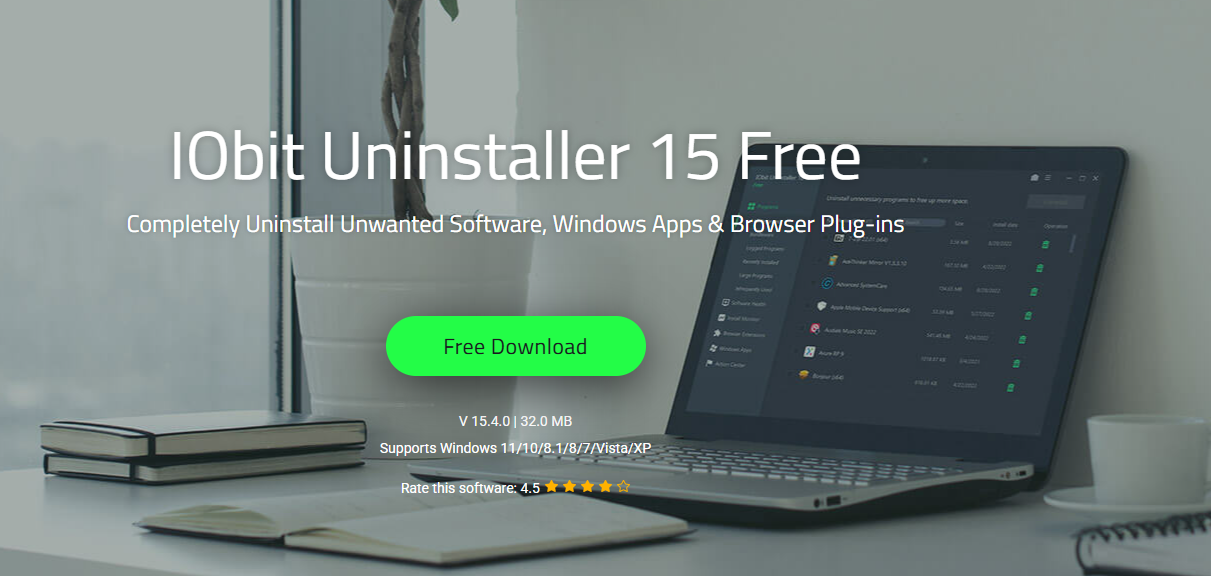
That was when I gave IObit Uninstaller 15 Free a whirl, and it completely revolutionized my concept of how to completely uninstall software from a computer.
What I Learned About Uninstalling Software
Before using IObit Uninstaller, I assumed that uninstalling a program removed every file connected to it. I quickly learned that this was not always true.
Many programs leave behind different types of files after removal, including:
- Temporary files
- Registry entries
- Configuration files
- Program folders
- Installation traces
These leftovers may seem trivial, but they can accumulate over time and form unwanted clutter on your system.
I scanned a program I uninstalled with IObit Uninstaller to see if it left any files behind. Windows missed a lot of them! And that was when I learned that software removal can be much more thorough.
IObit Uninstaller: A Cleaner Computer With Less Effort
What I immediately liked was how easy IObit Uninstaller was to use.
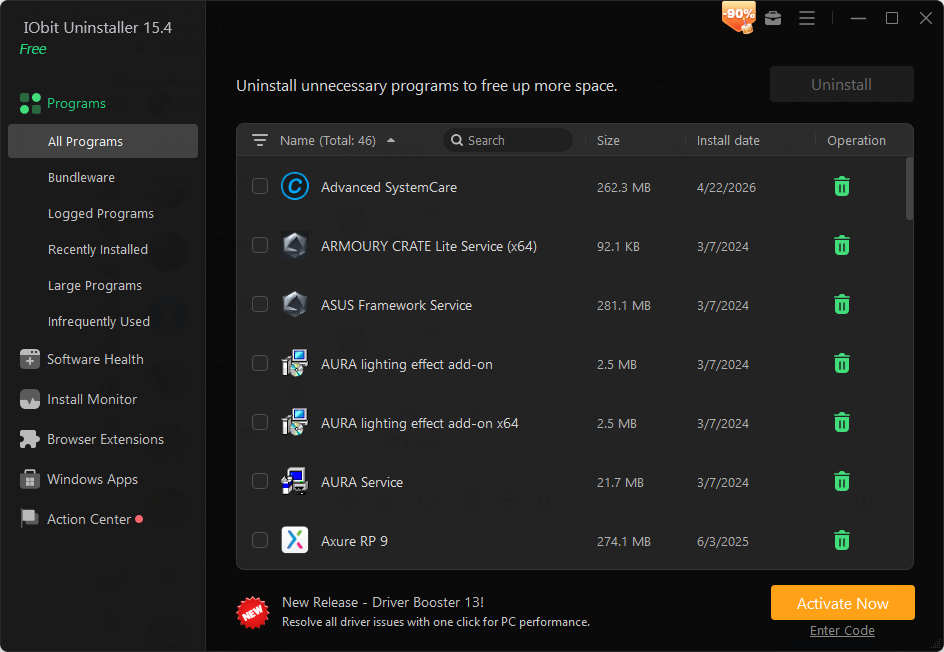
The interface was easy to understand, well-organised and simple. I could see installed programs, recently installed applications, Windows apps and browser extensions all in one place easily.
I could control everything from a single dashboard without having to go through different menus.
Some of the most used features I had were:
- Complete Software removal
- Batch uninstall
- Force uninstall
- Cleaning up leftover files
- Browser extensions management
These tools made my life so much quicker to delete programs.
Force Uninstall Saved Me Many Times
Every computer user will eventually encounter a stubborn program that won’t uninstall properly.
I’ve had this happen before with older software that had corrupt uninstall files.
Windows popped up error messages and couldn’t fully delete the programs.
The Force Uninstall feature of IObit Uninstaller was able to search for the leftover files and remove them correctly.
This alone saved me from having to manually delete folders and dig through system directories.
Browser Extensions Were Easier to Manage
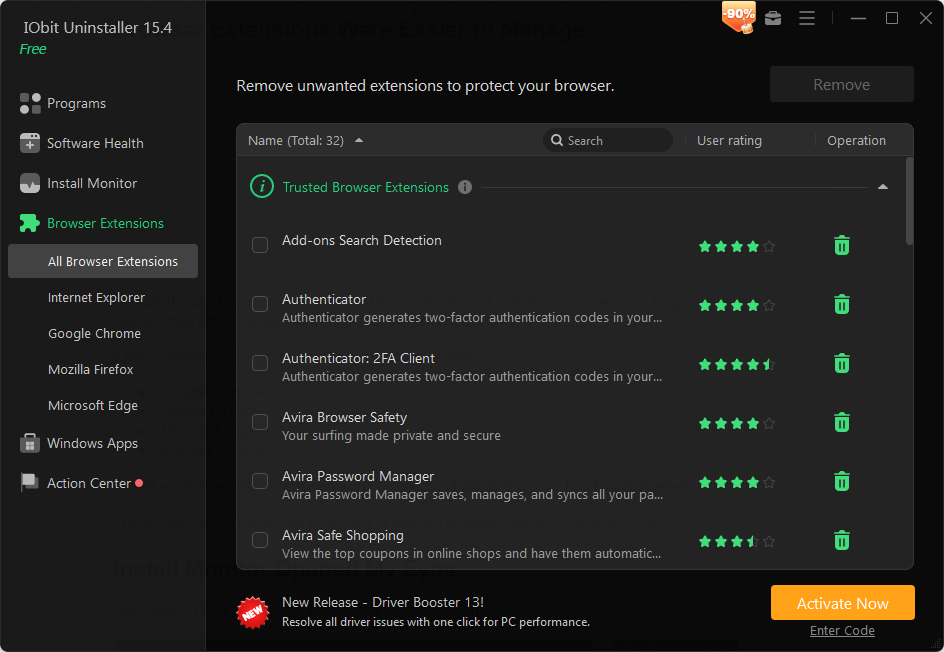
I installed many browser extensions and forgot about most of them. Some were no longer useful, while others slowed down browser performance.
IObit Uninstaller allowed me to manage extensions from:
- Google Chrome
- Mozilla Firefox
- Microsoft Edge
- Internet Explorer
I could easily see what extensions were installed and delete the ones I no longer needed.
The software also discovered potentially unwanted browser extensions and add-ons.
Install Monitor Opened My Eyes
One feature I had never used before was the Install Monitor.
This tool tracks the changes that happen to your computer when software is installed on a computer.
It can monitor:
- Files created during installation
- Registry changes
- Scheduled tasks
- Services
- DLL files
I found this useful because it showed exactly what a program was adding to my system.
If I later decided to remove that software, I had a much clearer picture of what needed to be cleaned up.
Software Health Became a Helpful Maintenance Tool
Another feature that surprised me was Software Health.
Instead of only uninstalling software, it also checks for problems that can affect system performance.
The scan can detect:
- Outdated software
- Uninstall leftovers
- Redundant files
- Hibernated programs
- Intrusive notifications
- Unauthorized permissions
After running a scan, I could fix multiple issues with a single click.
This made routine PC maintenance much easier than manually checking everything myself.
More Than Just an Uninstaller
Before using IObit Uninstaller, I viewed uninstallers as simple tools that removed programs.
After spending time with IObit Uninstaller 15, I realized it offers much more.
Some features that stood out to me include:
Complete Program Removal
When I uninstall a program, I want it gone completely, and this is what this feature does for me. It removes apps from both the Microsoft Store and regular software sources. I noticed it also clears hidden leftovers, which helps my computer stay clean and run better.
Secure File Shredder
This is an important feature for me when I want to delete personal or sensitive files. “Instead of just deleting them normally, it deletes them forever, so they can never be recovered.” It is convenient when I am working with data that is private or with important documents.
Windows App Removal
I also used it to rid myself of any preinstalled Windows apps I don’t need. Some of these apps are difficult to uninstall normally, but this tool makes it easy for me. It keeps me with only the apps I actually use, so my system feels lighter.
Support for Stubborn Programs
Sometimes I face programs that refuse to uninstall properly, but this feature solves that problem for me. It can remove more than 4,000 stubborn applications that refuse to uninstall normally. In my experience, it forces a complete uninstall, so I don’t have to struggle with manual removal steps anymore.
Final Thoughts
IObit Uninstaller 15 Free proved to me that removing software is more than just a click of an uninstall button. This reliable uninstaller for Windows gave me better control of my computer by helping me uninstall stubborn programs, clean up residual files, clean up residual files, manage browser extensions, and track installations.
If you are like me and you install and uninstall software regularly, you will notice the difference with this tool. Now that my PC seems cleaner, more organised, and easier to maintain, I think about software removal very differently than I did before.